Digitize Records and Receipts — Move to Paperless Bookkeeping
Learn how Phoenix small businesses can digitize receipts and documents, attach them to transactions, and keep books tax-ready with searchable, cloud-backed records.
Summary
Digitizing records and documents turns paper clutter into searchable, backed-up files that speed bookkeeping, simplify audits, and make your business tax-ready. Moving to a digital document management system reduces lost receipts, improves collaboration with your bookkeeper, and integrates directly with QuickBooks and other accounting tools.
Why digitize your records
Paper is fragile, slow to search, and hard to share. When you digitize receipts and attach them to transactions, you:
- Make audits and tax prep faster and less stressful.
- Reduce lost or faded receipts.
- Enable remote collaboration with your bookkeeper.
- Improve expense tracking and reimbursement workflows.
For Phoenix small businesses, digitization also protects records from local risks (weather, physical loss) and supports a modern, cloud-based bookkeeping workflow.
Step-by-step: How to digitize efficiently
1. Choose your scanning method(s)
- Smartphone apps (recommended for receipts): use apps with OCR and automatic cropping (e.g., Scan, Adobe Scan, Expensify).
- Dedicated scanner (recommended for invoices, contracts, high volume): a sheet-fed scanner with duplex scanning speeds up batch processing.
- All-in-one approach: use a phone app for on-the-go receipts and a scanner for monthly bulk scanning.
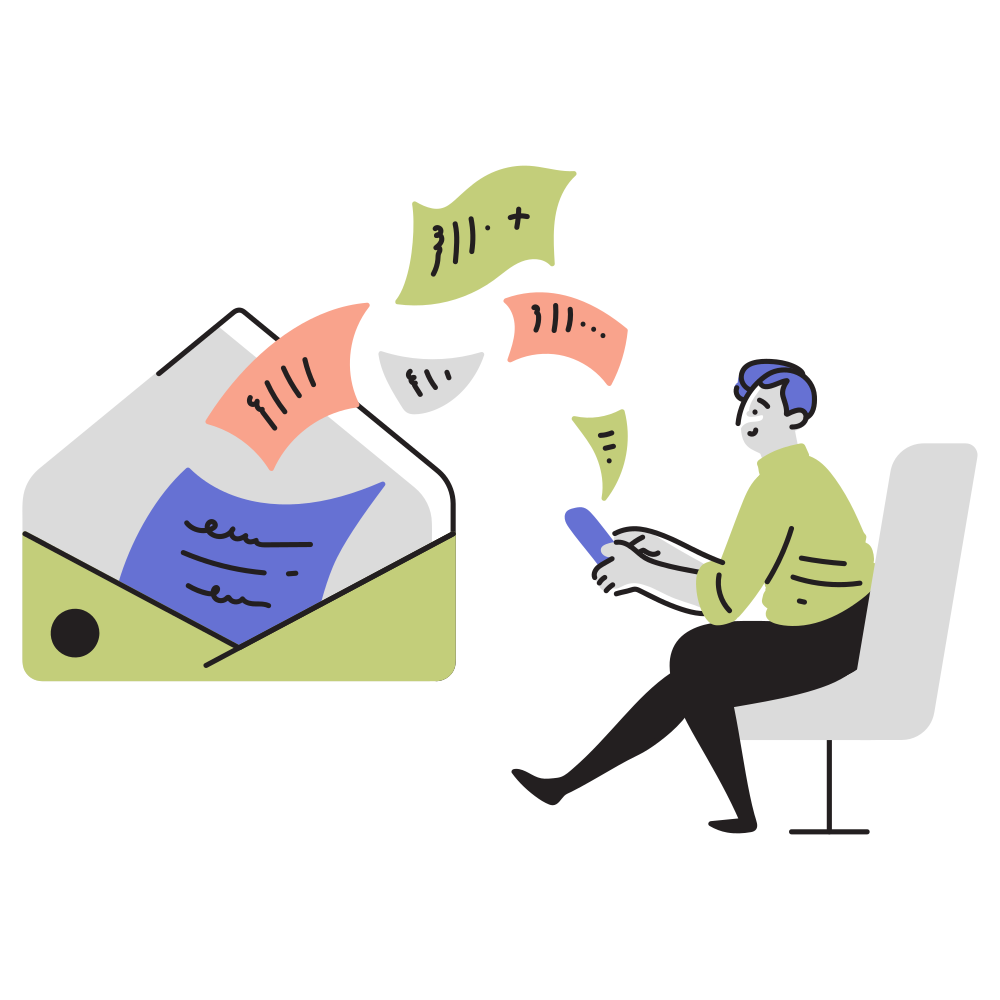
Scan receipts or photograph them with a phone app and attach each file to the matching transaction in your bookkeeping system. Use OCR where possible so receipts are searchable.
2. Standardize file naming and folder structure
Use a consistent naming convention:
`YYYY-MM-DD_Vendor_Amount_Category`
Folder structure example: `2026 ? 2026-05 ? Receipts` or `2026 ? Invoices ? VendorName`.
3. Use OCR and searchable PDFs
Enable OCR so receipts and invoices are text-searchable. This makes it easy to find documents by vendor, date, or amount.
4. Attach documents to transactions in your bookkeeping system
Upload or link scanned receipts directly to the matching expense or invoice in QuickBooks (or your accounting software). This creates an audit trail and speeds reconciliation.
5. Back up and secure your files in the cloud
Store documents in a secure cloud service (Google Drive, OneDrive, or a dedicated document management system) with versioning and encryption. Keep access controls tight and use two-factor authentication.
Best practices and compliance
- Keep originals only when required. For most expenses, high-quality scans are acceptable; retain originals for items with legal or warranty requirements.
- Record the business purpose. Add a short note (client name, purpose) to receipts for meals, travel, and mixed-use expenses.
- Set a monthly scanning routine. Scan receipts weekly or at month-end to avoid backlog.
- Use integrations. Choose scanning tools that integrate with QuickBooks or your client portal to automate attachments.
- Retention policy: Follow IRS and local guidelines — generally keep tax records for at least 3–7 years depending on the document type.
Quick checklist to get started
- Select a scanning app and/or dedicated scanner.
- Create a consistent folder and file naming convention.
- Enable OCR for searchable PDFs.
- Attach scanned documents to bookkeeping transactions.
- Back up files to a secure cloud service with 2FA.
- Schedule a monthly scanning and filing routine.
How Bisoneva Bookkeeping can help
We set up digital document workflows, connect your scanning tools to QuickBooks, and ensure every transaction has an attached receipt or invoice. That means faster reconciliations, audit readiness, and cleaner monthly reports. Start With a Free Online Meeting.